Author: student

  • Cloud & GDPR: 5 Key Requirements and a Quick Comparison (Box, Dropbox, OneDrive, Tresorit)

    # Cloud & GDPR: 5 Key Requirements and a Quick Comparison (Box, Dropbox, OneDrive, Tresorit)

    **Summary**
    Cloud is convenient, but you need a **GDPR lens**. Here are **5 requirements** students should evaluate and a **classroom-oriented** comparison.

    ## 1) Five key requirements

    1. **Controller/Processor contract**: clauses on protection, sub-processors, and technical/organisational measures.
    2. **Encryption in transit and at rest** (ideally end-to-end for sensitive files).
    3. **Location & retention**: data centres, storage periods, deletion policies.
    4. **Key management**: who controls keys and access logging.
    5. **Portability/recovery**: easy export and restore after incidents.

    ## 2) Quick comparison (indicative for learning)

    | Criterion \ Service | Box | Dropbox | OneDrive | Tresorit |
    | —————————– | —————– | ——– | ————————- | ————– |
    | Controller/Processor contract | High | Med-High | High (MS ecosystem) | High |
    | Encryption | High (enterprise) | Med-High | High (in transit/at rest) | **High (E2E)** |
    | Location/retention | High (options) | Med-High | High (MS data centres) | Med-High |
    | Key management | Med-High | Medium | Med-High | High |
    | Portability/recovery | High | High | High | Med-High |
    | **Notes** | | | | |

    * **Tresorit** stands out for **E2E** (privacy-first), with fewer integrations.
    * **OneDrive** benefits from **Microsoft 365** integration in academia.
    * **Box** and **Dropbox** offer solid controls on suitable plans.

    > **Disclaimer**: indicative table for education. Always verify vendor docs before real decisions.
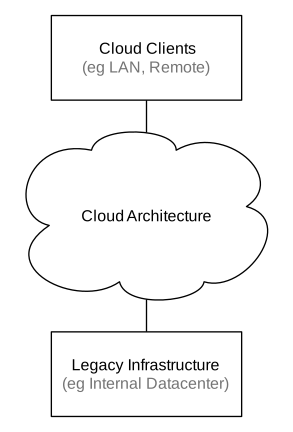
    Cloud Computing Network Diagram

    *Image: Sam Johnston — CC BY-SA — Source: https://commons.wikimedia.org/wiki/File:CloudComputingNetworkDiagram.svg*

  • GDPR for Non-Lawyers: Principles, Legal Bases, and User Rights

    # GDPR for Non-Lawyers: Principles, Legal Bases, and User Rights

    **Summary**
    The **General Data Protection Regulation (GDPR)** aims for data processing that is **lawful, fair, and transparent**. This is what a student/creator really needs.

    ## 1) Key concepts

    * **Personal data**: information identifying or potentially identifying a person (name, email, IP, photo, voice…).
    * **Processing**: any operation on data (collect, store, publish, erase…).
    * **Controller/Processor**: the entity deciding the purposes (controller) and the one processing on its behalf (processor).

    ## 2) Core principles (memory cues)

    * **Lawfulness, fairness, transparency**.
    * **Purpose limitation**.
    * **Data minimisation**.
    * **Accuracy**.
    * **Storage limitation**.
    * **Integrity and confidentiality**.
    * **Accountability**.

    ## 3) Legal bases (when processing is allowed)

    * **Valid consent** (explicit, informed, revocable).
    * **Contract performance**.
    * **Legal obligation**.
    * **Vital interests**.
    * **Public task**.
    * **Legitimate interests** (with balancing and safeguards).

    ## 4) Data subject rights

    * Access, rectification, erasure, objection, restriction, portability, and the right **not** to be subject to automated decisions without safeguards.

    ## 5) Good practice for an academic blog

    * Collect **only** what’s needed (comments).
    * Explain in **Privacy & Cookies**: what, why, and for how long.
    * Provide a contact to exercise rights.
    * Keep backups and basic security.

    EU GDPR

    *Image: TheDigitalArtist — CC0 1.0 (Public Domain) — Source: https://commons.wikimedia.org/wiki/File:EU_gdpr.jpg*

  • Security 101 for My WordPress: Passwords, Updates, and Backups

    # Security 101 for My WordPress: Passwords, Updates, and Backups

    **Summary**
    This blog is academic, but I treat it like a real site: **strong passwords**, **updates**, and **backups**—no paid plugins required.

    ## 1) Passwords & access (simple and strong)

    * Long, unique passphrases (14–16+ characters).
    * Never reuse passwords across services.
    * Use a password manager if possible.
    * **2FA** wherever the host/platform supports it.

    ## 2) Updates (just the essentials)

    * Keep WordPress core, theme, and **free** plugins up to date.
    * 80/20 rule: **fewer plugins = less risk**.
    * Remove what you don’t use.

    ## 3) Free backups (native tool)

    * Use **Tools → Export → All content** → download `Backup-YYYY-MM-DD.xml`.
    * Store it in cloud and locally (3-2-1 rule).
    * Repeat after publishing important entries.

    ## 4) Comments & spam

    * Turn on moderation.
    * Disable comments on **static pages** (Privacy/Attribution) if needed.

    ## 5) Editorial good practices

    * Only **CC0/CC-BY** images with **proper credit**.
    * No copyrighted material without permission.
    * Link to reliable sources.

    Electronic Security Artwork

    *Image: MarkJFernandes — CC0 1.0 (Public Domain) — Source: https://commons.wikimedia.org/wiki/File:Electronic-security_artwork_(lock_%26_circuit-board_patterns).jpg*

  • Phishing and Other Traps: My 10-Step Protocol

    # Phishing and Other Traps: My 10-Step Protocol

    **Summary**
    **Phishing** steals credentials or money via emails, SMS, or fake websites. Here’s my **practical protocol**—follow it as written.

    ## 1) Red flags to spot fast

    * Artificial **urgency** (“account closes today”), **prizes**, or **threats**.
    * Weird domains (bank-secure-verify.net).
    * Shortened links or unexpected attachments.
    * Grammar/locale inconsistencies.

    ## 2) My 10-step protocol

    1. **Assume suspicion**: never click blindly.
    2. **Check sender** and domain letter by letter.
    3. **Hover over links** to preview the real URL.
    4. **Do not open attachments** you weren’t expecting.
    5. **Go to the official app/website**, not the email/SMS link.
    6. **Enable 2FA** (limits damage even if a password leaks).
    7. **Update** OS/browser/antivirus.
    8. **Report** the attempt (mail provider/service).
    9. **Change password** if you entered anything.
    10. **Monitor** banking/accounts for 48–72 hours.

    ## 3) Social engineering beyond email

    * **Vishing** (phone): never share codes over the phone.
    * **Smishing** (SMS): avoid links; open the official app.
    * **Fake support**: verify the number/channel every time.

    ## 4) Quick security checklist

    * [ ] 2FA on email/social/banking.
    * [ ] Password manager; unique, long passphrases.
    * [ ] Backups (3-2-1).
    * [ ] Automatic updates on.
    **Image**: lock/keyboard (CC0).
    **Credit**: “Credit: Author — CC0/CC-BY — link”.

  • Copyright Without Drama: Creative Commons and Fair Use for Student Bloggers

    Copyright Without Drama: Creative Commons and Fair Use for Student Bloggers

    Summary
    Publishing online means **respecting authors’ rights**. Do it right (it’s easy) and you avoid takedowns, warnings, and reputation damage. Here is a concise guide to **use and attribute** third-party works safely.

    1) What copyright protects (and what it doesn’t)

    * **Protects**: original works (text, images, music, video, code, graphics).
    * **Doesn’t protect**: bare ideas, facts, raw data, styles.

    2) Creative Commons (CC) in 60 seconds

    * **CC-BY**: use it if you **credit** the author.
    * **CC-BY-SA**: credit + **share alike** under the same license.
    * **CC-BY-NC**: credit + **non-commercial**.
    * **CC-BY-ND**: credit + **no derivatives**.
    * **CC0**: public domain (attribution not required but **recommended**).
    **Where to search**: Wikimedia Commons, Flickr with CC filters, Free Music Archive. (Unsplash offers permissive terms similar to public domain for most use cases—still add author/source.)

    3) Fair use & legitimate quotation (practical take)

    * **Fair use** (US) / **quotation right** (EU): limited use for criticism, commentary, teaching, or parody—**with attribution** and without harming the work’s market.
    * Avoid posting **full works** unless necessary and allowed.

    4) How to attribute (ready-to-paste)

    > **Title/Author (link)** — License **[type]** — Source: **[URL]**
    > Example: *Photo by Jane Doe* — **CC-BY 4.0** — Source: https://…

    5) Quick table for responsible use

    | Work type | Where to find CC | Allowed actions | Attribution |
    | ——— | —————————- | ——————————- | ——————————- |
    | Images | Wikimedia/Flickr-CC/Unsplash | Insert/edit (per license) | Title + author + license + link |
    | Music | Free Music Archive | Use in videos if license allows | Author + license + source |
    | Video | Internet Archive/Vimeo CC | Embed with permissions | Title + author + license |
    | Text | CC blogs/own notes | Short quotation + link | Author + link |

    6) Common mistakes to avoid

    * Downloading from Google Images **without** checking the license.
    * “Found on X social network” (not a license).
    * Forgetting the **link** to the original.

    7) My attribution policy (reader-friendly)

    * I use **original** or **CC/open** content only.
    * I always include **author, license, and source link**.

    Copyright icon

    *Image: Public domain (PD-ineligible) — Source: https://commons.wikimedia.org/wiki/File:Copyright.svg*

  • IoT & a Digital Life: 5 Smart Decisions I Apply Every Day

    # IoT & a Digital Life: 5 Smart Decisions I Apply Every Day

    **Summary**
    We live surrounded by connected devices: phone, watch, earbuds, smart TV, printer, smart scale, speakers… The **Internet of Things (IoT)** adds convenience—if we manage it wisely. Below are **5 smart decisions** I use to keep benefits high and risks low.

    ## 1) Digital convergence & IoT (two clear ideas)

    * **Digital convergence**: what used to require separate gadgets (camera, MP3, GPS) is now integrated into one **smartphone** that handles text, music, photo, video, maps, and even payments.
    * **IoT**: physical objects with **sensors + connectivity** that send/receive data (wearables, bulbs, locks, scales, appliances). They improve habits and automation but expand the **attack surface**.
    **Personal examples**
    * Watch + phone → steps/sleep tracking and calendar nudges.
    * TV/smart speaker → streaming with voice control.
    * Scale/wearable → simple health trends.

    ## 2) Main risks (and how to spot them)

    * **Privacy**: excessive data collection (location, biometrics, routines).
    * **Security**: weak credentials, unpatched gadgets, unsafe Wi-Fi.
    * **Digital divide**: not everyone has the same access or literacy.
    **Warning signs**
    * “Grant all permissions” for trivial features.
    * Urgent notifications (“Your account expires today!”).
    * Devices that **never** receive updates.

    ## 3) Five smart decisions (you can do today)

    1. **Separate accounts + 2FA** for email, cloud, banking. Prevent domino effects.
    2. **Minimum permissions** for apps/devices (only what’s necessary). Review quarterly.
    3. **Backups 3-2-1**: 3 copies, 2 media, 1 off-site (cloud).
    4. **Guest Wi-Fi for IoT**: keep phones/laptops on the main network.
    5. **Reputation hygiene**: post as if professors/employers were watching; avoid copyrighted or sensitive material.

    ## 4) Digital vs. analog (choose with intent)

    * **Digital**: perfect copies, easy editing, instant distribution.
    * **Analog**: often better for deep focus (physical books), **fewer distractions**.
    **My rule**: digital for **producing/sharing**, analog for **deep study**.

    ## 5) Personal mini-checklist

    * [ ] 2FA enabled (email, cloud, banking, socials).
    * [ ] Permissions reviewed (quarterly).
    * [ ] 3-2-1 backup done this week.
    * [ ] Guest network for IoT created.
    * [ ] Last 10 posts: would I be proud to show them in class?
    **Suggested image**: your desk or a CC0 smart-home illustration.
    **Credit format**: “Credit: Author — CC0/CC-BY — link to source”.

    Internet of Things illustration

    *Image: EpicTop10.com — CC BY 2.0 — Source: https://commons.wikimedia.org/wiki/File:Internet_of_Things2.jpg*

  • Making the Internet work for you (Lecture 2 takeaways)

    Lecture 2 shows the web as a client–server ecosystem where bandwidth, latency, and security choices shape our experience. My practical habits this term:

    • Security first: use HTTPS-only pages for forms and logins; check the domain and permissions before submitting data.
    • Performance: pre-download readings before class; schedule large uploads when the network is quiet.
    • Reliability: clear file names and shared folders in the cloud so group work stays fast and predictable.
    • Attention: reduce tab clutter and use a “read later” list to keep focus on primary tasks.

    What I’m testing weekly:
    1) Link hygiene — remove risky/duplicated bookmarks.
    2) One-page summaries per topic with key diagrams/definitions.
    3) Offline copies for critical docs (slides, notes) so latency never blocks learning.

    Bottom line: performance and security are not only technical; they’re study habits. If you have a tip that improves speed or safety, share it in the comments and I’ll add it to the post’s changelog.

  • User-Generated Content that builds trust

    User-generated content (UGC) is powerful when it is purposeful and moderated. Three principles for this site:

    1) Provenance over volume: I credit sources, link originals, and avoid resharing without context.
    2) Clear rules: respectful tone, no personal data in comments, and claim–evidence–source when we discuss facts.
    3) Feedback loops: I update posts when classmates add better examples or corrections, keeping a short “Changelog” at the end.

    Why it matters: UGC can increase clarity, participation and credibility when moderation is transparent and contributions are attributable. This term I’ll approve comments manually, answer with sources when possible, and spotlight classmates’ insights that objectively improve the post.

  • Cloud computing for students & small teams

    Cloud turns fixed costs into on-demand services. For study projects I ask:

    • What needs high availability and version control? (notes, spreadsheets, slides)
    • What benefits from real-time collaboration? (group assignments)
    • What is sensitive and needs access controls? (grades, IDs)

    Practical setup: shared folders with clear naming, view-only links for external reviewers, and MFA on accounts. Watch for lock-in; keep local exports for critical files. Goal: collaboration speed without compromising integrity or privacy.